Rich Black vs 100% K: When Each Black Belongs in a Print File
Use 100% K black for most small text, thin rules, barcodes and other registration-sensitive detail. Use a printer-approved rich black for large backgrounds, broad shapes and display lettering where a deeper, more saturated black matters. Never use the application’s Registration color as a substitute for either one.
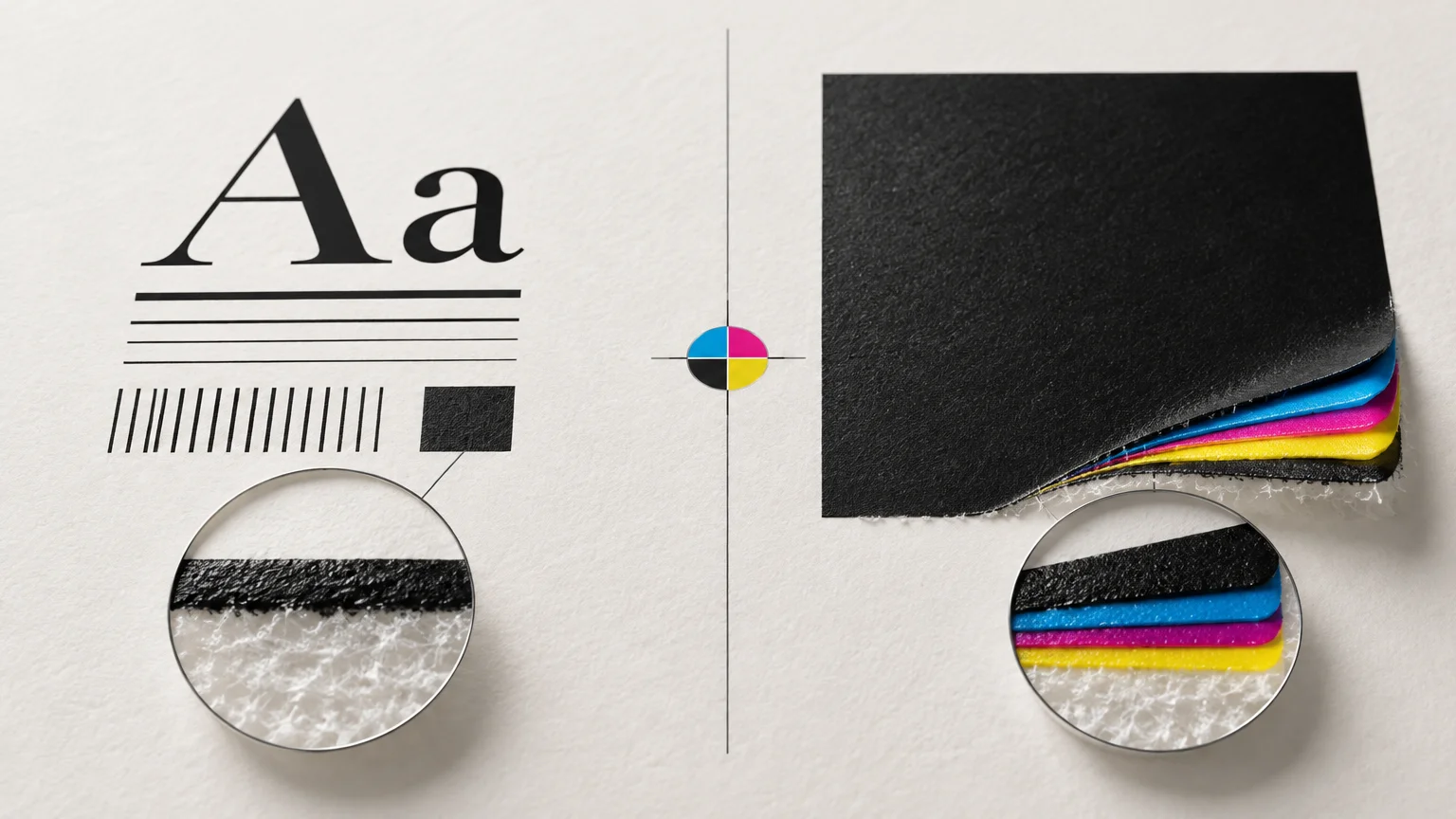
That is the short answer, but the physical reason matters. A 100% K object prints on one process separation. Rich black combines black with one or more of the other process colors—cyan, magenta or yellow—so several plates or imaging channels may form the same edge. The additional inks can create a denser-looking solid, but they also increase total ink coverage and make small alignment errors more visible. Adobe defines rich black as process black combined with one or more additional process colors. Adobe’s color-separation guidance also distinguishes its deeper appearance from black made with 100% K alone.
The choice belongs to the object, not the whole document
A print file does not need one universal black swatch. The correct build depends on what each black object is doing. A six-point legal line, a heavy display word and a full-page background can legitimately use different black constructions in the same document.
| Print element | Usual starting choice | Production reason | Check before release |
|---|---|---|---|
| Small text and fine type | 100% K | Uses one process separation and reduces visible color-fringe risk | Confirm overprint behavior and final separations |
| Thin rules and small icons | 100% K | Keeps narrow edges on one separation | Make sure conversions have not rebuilt the black |
| Large black backgrounds | Printer-approved rich black | Additional process inks can produce a deeper, more saturated solid | Confirm the recipe, output profile and total ink limit |
| Large display lettering | Depends on size and surrounding color | Rich black may improve visual density, but multiple separations still create registration risk | Inspect edge size, knockout behavior and trapping |
| Black over colored artwork | 100% K may be appropriate, but overprint is a separate decision | Overprint can avoid knockout gaps, yet underlying color may affect appearance | Use overprint preview and follow the printer’s workflow |
| Crop and registration marks | Registration color or marks generated by the print workflow | Marks may need to appear on every separation | Keep Registration color out of ordinary artwork |
Treat those choices as starting points rather than press specifications. A black build suitable for one coated-sheet offset condition may exceed the desired ink limit on another stock or output process. The production provider’s specification and the intended output profile take precedence over a recipe copied from another job.
Why 100% K protects small text and fine detail
Consider a line of small black text made from cyan, magenta, yellow and black. Its edge is formed four times. If those separations do not land in exactly the same place, one side can show a colored fringe while the opposite side loses supporting color. The amount of movement may be small, but fine letterforms make it conspicuous because the error occupies a meaningful fraction of a stem or serif.
With 100% K, the letterform depends on the black separation alone. There are no CMY support screens to align to its edge. Adobe’s trapping documentation notes that misregistration of the supporting screens in rich black can produce halos or distorted edges, while Enfocus identifies small text on colored backgrounds as especially difficult to hold in register.
The same logic applies to hairlines, small symbols, QR-code modules and other compact geometry. It does not mean every large letter must be 100% K. It means that the potential visual gain from supporting inks should be weighed against the object’s edge sensitivity. As objects become smaller or thinner, single-separation construction becomes more valuable.
Why large solids often benefit from rich black
A broad area exposes the visual limitations of process black more readily than small type. On a large panel, 100% K can appear less saturated than a black supported by carefully chosen amounts of CMY. Rich black uses those additional process inks to increase the perceived depth of the area.
This does not make rich black a special ink. It is still a combination of process separations, and its behavior depends on the printing condition. The same entered CMYK values can produce different results after color management, screening, substrate interaction and device conversion. If a black background must match an adjoining photograph, ask how the printer wants both areas constructed rather than assuming identical on-screen values will create identical press behavior.
Large reverse text also deserves attention. When white or light lettering is knocked out of rich black, every supporting separation helps define the opening around the letters. Slight register movement can introduce colored edges inside the knockout. Larger, heavier reverse type is more forgiving; small or delicate reverse type may require a different build, trapping treatment or proofing strategy.
A rich-black recipe is not universal
Recipes such as 60C/40M/40Y/100K are often circulated as if they were standards. That example totals 240% ink coverage, but its arithmetic does not prove that it suits a particular press, stock or profile. Adobe advises asking the print provider for percentages appropriate to the paper and printing process.
Total area coverage, usually shortened to TAC, is the sum of the four process percentages at one location. A 0C/0M/0Y/100K object has 100% TAC. The illustrative 60C/40M/40Y/100K build has 240% TAC. Raising the CMY components increases coverage quickly, and excessive ink can create drying or press problems.
There is no single safe TAC number for every job. The ICC Profile Registry documents printing conditions with limits including 240%, 270%, 280%, 300% and 320%. ICC technical material describes a still broader approximate range for lithographic printing depending on the process and paper. The useful specification is therefore the limit for the actual output condition, not the highest number found in a generic prepress article.
A simple coverage calculation
Suppose a designer is considering two builds for a large black panel. Build A is 0C/0M/0Y/100K, which totals 100%. Build B is 60C/40M/40Y/100K, which totals 240%. If the printer’s specified limit were 220%, Build B would exceed it by 20 percentage points. The proper response would not be to reduce arbitrary channels until the sum fits. It would be to request the provider’s preferred build or use the supplied output profile and conversion workflow.
Coverage limits are maximums, not targets. A 300% allowance does not mean a black object should automatically contain 300% ink. The supporting CMY amounts should serve the desired neutral appearance and production condition without adding unnecessary coverage.
100% K and overprint are different decisions
Color construction answers which separations contain the object. Overprint answers whether those separations print on top of underlying artwork or knock a hole out of it. A 100% K object can be set either to overprint or to knock out, so specifying 100% K does not settle the second question.
Overprinting solid black text can prevent a thin light gap from appearing if a knocked-out background and the black separation move slightly out of register. Enfocus describes this as a practical treatment for solid 100% black text in workflows where it is required. It also limits the logic to solid black because overprinting colored text can create unintended mixed colors. Enfocus’s black-text preflight guidance explains that distinction.
Overprint is not automatically correct for every black object. Adobe notes that process black may not be fully opaque when overprinted, allowing the underlying colors to influence its appearance. A large 100% K panel over a colorful image may therefore look uneven, even though a small line of black text over the same image appears acceptable. Judge overprint by object, background and output process.
Do not try to verify this from the normal page view alone. Enable overprint preview and inspect the exported PDF. If a production workflow automatically overprints black, confirm its threshold and whether it acts only on 100% K objects. A black containing even a small CMY component may be treated differently.
Registration color is not an extra-rich black
InDesign’s [Registration] swatch outputs at 100% on every process and spot separation. In a CMYK-only job, that means all four process plates receive the object. In a document with white ink, varnish, metallic ink or another specialty plate, the Registration-colored object can appear on those separations too.
That behavior is useful for small technical marks that must appear on every plate. It is dangerous for ordinary artwork. A large CMYK Registration object represents 400% process coverage before any spot separations are considered, potentially exceeding the intended ink limit and placing unwanted artwork on specialty plates. Adobe says to confine Registration color to small technical marks such as crop and registration marks.
If a swatch looks exceptionally dark on screen, inspect its definition instead of trusting its name or appearance. Registration black, rich black and 100% K may all look similar in a layout view while producing radically different separations.
Color management can change the black you entered
Source values do not always equal final device values. ICC profiles can use different black-generation and ink-limiting methods, while many digital systems transform incoming RGB or CMYK through an internal color workflow. ICC also notes that PDF does not inherently require a pure-colorant object such as black text to remain pure during colorimetric retargeting.
This is one reason the choice between RGB and CMYK in a print workflow cannot be reduced to the document color mode. A conversion during export, normalization or RIP processing may rebuild a nominally simple black. Conversely, a configured workflow may preserve pure black text while transforming images and other objects.
Spot-color and process-color decisions can complicate the same file. If the job includes a dedicated ink, review how that separation interacts with black artwork rather than assuming CMYK previews tell the whole story. The distinction between Pantone spot ink and CMYK simulation is especially relevant when black objects sit beside or overprint a spot color.
Preflight the exported PDF, not just the layout
The final PDF is the useful checkpoint because it shows what survived export. Adobe provides separation-preview tools in InDesign and Illustrator for checking process plates, spot colors, rich black and overprint. Acrobat Output Preview can inspect individual separations, identify rich black and test total coverage against a selected threshold.
Run the following checks at the final output settings:
- Turn off the cyan, magenta and yellow separations. Small black text and fine rules intended to remain 100% K should still appear on the black plate and disappear from CMY.
- Turn off the black separation. Look for unexpected remnants of small text or fine detail on the CMY plates.
- Inspect large black solids with the ink-coverage tool. Compare the measured total with the printer’s specified limit for that output condition.
- Enable overprint preview. Check black objects over flat colors, photographs, gradients and spot inks for unintended transparency or color shifts.
- Review every spot separation. Confirm that ordinary black artwork does not appear on white-ink, varnish, foil or other specialty plates.
- Zoom into reverse type and fine edges. Look for builds that place several separations around geometry too delicate to tolerate visible movement.
- Confirm that technical marks use the intended workflow-generated or Registration treatment, while page artwork uses ordinary process or approved spot colors.
This separation check also catches a common hidden error: text that looked black in the design application but was converted into a four-color build during an earlier color transformation. Enfocus can flag black text that is not set to overprint when a selected workflow requires that condition, while Acrobat Output Preview reveals the resulting plates and overprint state.
What to ask the printer before finalizing black
Ask for the preferred rich-black build, maximum total ink coverage, intended output profile and black-overprint policy. Also identify the substrate, process and any specialty separations. Those details determine whether a copied CMYK formula is sensible or merely familiar.
For broader custom-print production options, printiverse.com is a place to continue the production search once those file requirements are clear. Whichever provider produces the job, use its current specification rather than silently carrying a black recipe from a previous project.
The practical rule is simple: construct black according to the physical job performed by each object. Keep small, registration-sensitive elements on the black separation unless the production workflow says otherwise. Use rich black selectively for broad areas that need greater visual density, and keep its total coverage within the specified output condition. Then verify the exported PDF one separation at a time. That final inspection is what turns a plausible black swatch into a controlled print instruction.
References
- Color separations in Adobe InDesign | InDesign
- Black text
- Trapping color (Acrobat Pro) | Adobe Acrobat
- ICC Profile Registry
- White Paper 23
- Preview color separations in Illustrator | Illustrator
- Previewing output (Adobe Acrobat Pro) | Adobe Acrobat
- Overprinting in InDesign | InDesign
- Print objects on all color plates in InDesign | InDesign
- ICC Frequently asked questions — International Color Consortium
- White Paper 31