Linked Images vs Embedded Images in Print Files
Use linked images while artwork is being designed, revised, and approved. Embed selectively when a self-contained native document offers a clear practical benefit. For final handoff, do not treat either choice as a substitute for packaging the source files and exporting a checked production PDF.
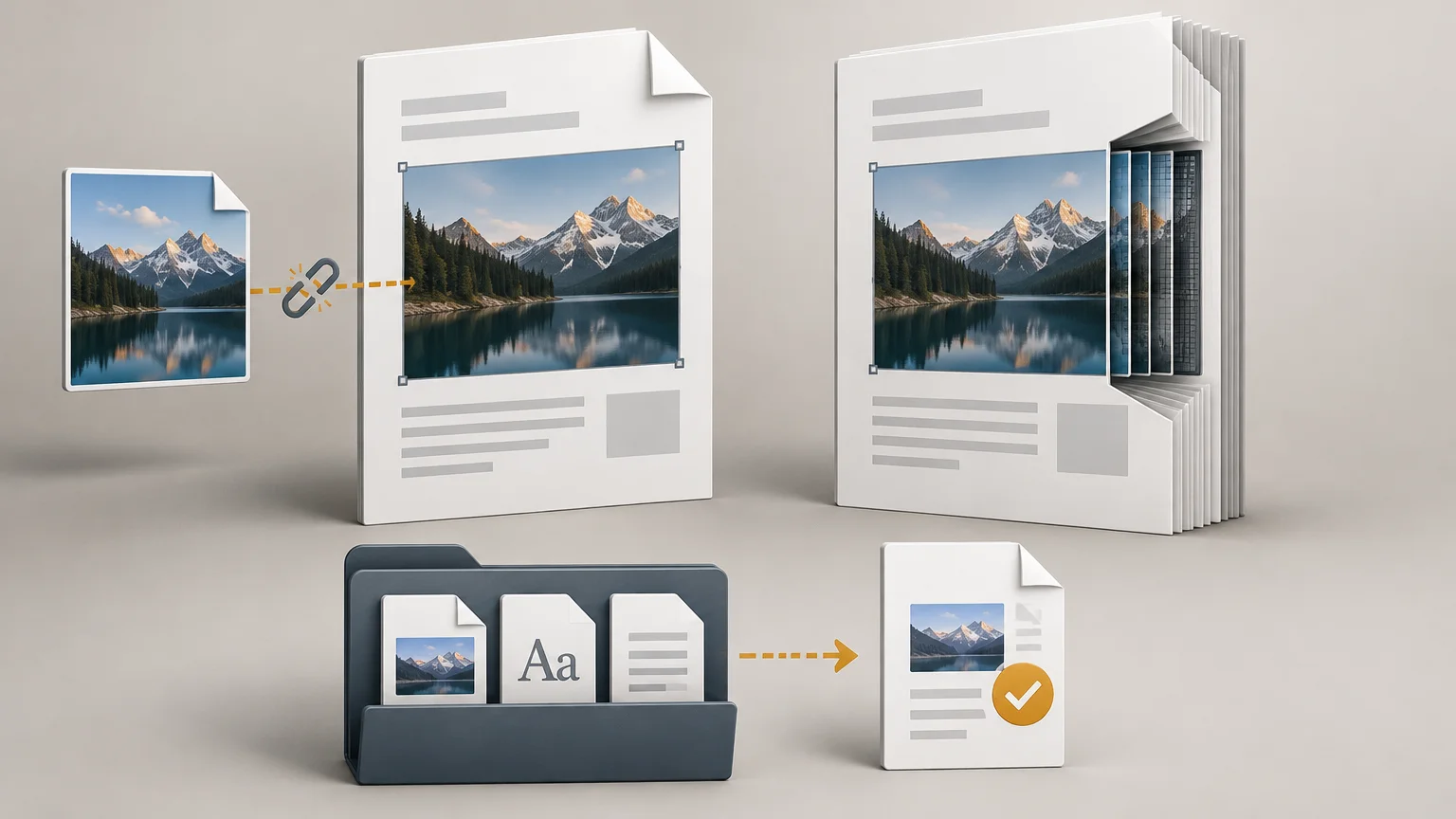
That distinction matters because linking and embedding solve a document-management problem, not a print-quality problem. A linked image remains an external file referenced by the layout. An embedded image is copied into the native document. If the same image data reaches output, neither state is inherently sharper, cleaner, or more color accurate than the other. Resolution, color construction, transparency, and export settings determine the production result. Adobe’s InDesign Links panel documentation explains the status and metadata available for placed graphics.
What changes when an image is linked or embedded?
| Factor | Linked image | Embedded image |
|---|---|---|
| Storage | Remains in a separate source file | A copy is stored inside the native document |
| Native file size | Usually smaller because image data is not duplicated in the layout | Usually larger because the document contains the image data |
| Updates | Can reflect a revised source after the link is updated | Does not automatically follow revisions to the original external file |
| Portability | Requires the linked source to remain available at the expected path or be packaged | Travels inside the native document |
| Failure mode | Can become missing or outdated | Can preserve an obsolete copy without an obvious external-link warning |
| Print quality | Depends on the available source and output settings | Depends on the embedded data and output settings |
The operational advantage of linking is controlled revision. A packaging layout might place the same product photograph in a front panel, side panel, and sales sheet. When the retouched photograph changes, the operator can update the link instead of replacing several independent copies. Linked files also avoid repeatedly adding the same image data to native layouts.
Embedding removes dependence on the external path, but it also separates the embedded copy from the original asset. If a retoucher corrects the external image later, that correction does not automatically replace the copy already stored in the layout. A self-contained file can therefore be portable and still be out of date.
Why links go missing or become modified
A missing link normally means the application cannot find the external file. The image may have been renamed, moved to another folder, deleted, stored on an unavailable server, or omitted from the handoff. A modified-link warning means the source file has changed since it was placed and the layout may need to refresh its copy. Both InDesign and Illustrator expose linked, missing, modified, and embedded states in their Links panels. Adobe’s Illustrator Links panel guide also describes the image information available for inspection.
This is where casual folder organization becomes a production risk. A layout may look correct on the designer’s computer because every path still resolves there. Send only the INDD or AI file, however, and the recipient may inherit references to a desktop folder or network volume that does not exist on the production workstation.
Placed artwork can also contain dependencies of its own. InDesign can expose nested links in placed EPS and InDesign documents. Checking only the top-level file therefore does not prove that every editable component has travelled with the job.
Embedding is not the same as creating a print-ready PDF
Embedding every image may eliminate missing-image paths in the native document, but it does not validate the job. The file can still contain insufficient effective resolution, unintended RGB conversions, incorrect spot-color construction, missing bleed, hidden production elements, or unsuitable transparency handling.
Conversely, a layout does not need embedded source images to produce a self-contained PDF. If all current links are available during export, their image content can be written into the PDF. PDF/X is intended for predictable print exchange, and a compliant PDF/X file includes its image content and required font data. Compliance alone does not prove that the images have enough resolution, that bleed is correct, or that the selected printing condition matches the job. The PDF Association’s PDF/X overview explains both the self-contained exchange model and its limits.
Export settings remain consequential. Compression, downsampling, color conversion, and cropping can alter what reaches the printer. Before export, inspect link status, effective resolution, color space, fonts, bleed, and the printer’s requested PDF preset. For trim work, use the production specification rather than assuming a universal value; this guide to setting bleed in a print file explains the usual starting point and why the printer’s template wins.
A reliable handoff for packaging artwork
Packaging files are especially vulnerable because the visible design may coexist with dielines, dimensions, varnish masks, white-ink plates, foil separations, technical notes, and hidden reference layers. An approval PDF may intentionally suppress some of those non-printing elements, while the native production package may need to preserve them for inspection or revision.
InDesign’s Package function can collect the document, linked graphics, transferable fonts, instructions, and optional IDML and PDF files. Adobe recommends resolving preflight, missing-link, and font issues before packaging. Package options can also collect links from hidden and non-printing content. Illustrator offers a comparable packaging workflow, but its option to relink collected files must be selected if the packaged AI document is to reference the new package location rather than the original paths.
Font files require separate judgment. A package command may be technically capable of collecting a font, but its license may prohibit transfer to a printer or other third party. Adobe Fonts files cannot simply be copied or moved, although font data may be embedded in PDFs for viewing and printing existing content under the applicable terms.
Preflight and handoff checklist
- Open the Links panel and resolve every missing or modified asset intentionally. Do not update all links blindly if revisions have not been approved.
- Inspect effective resolution, color space, scaling, transparency, and spot-color behavior. Link status alone says nothing about whether those properties are correct.
- Check nested placed documents and technical artwork, including content on hidden or non-printing layers.
- Confirm that white objects, transparent areas, and substrate color mean what production expects. The distinction is explained in transparent versus white backgrounds in prepress.
- Run the application’s preflight and correct relevant link, font, bleed, color, and document errors.
- Package the native document with its permitted dependencies. Reopen the packaged copy and verify that it points to the collected assets.
- Export the required production PDF using the printer’s preset or specification, then inspect the exported PDF rather than assuming the native preview guarantees the result.
- Send both the production PDF and native package when the printer may need to inspect separations, dielines, special inks, or editable construction. Clearly identify which PDF is approved for output.
Which approach should you choose?
For most multi-asset print layouts, keep images linked during production. The smaller native document, visible status reporting, and controlled update path are more useful than the convenience of embedding everything. Embed an asset when portability genuinely matters, the source is stable, and losing automatic external updates is acceptable.
For a simple sticker project moving from file preparation to ordering, customstickers.com provides a route for custom stickers, labels, materials, and related artwork preparation. The same preflight principle still applies: confirm the intended cut path, bleed, transparency, and any white-ink construction before approving production.
The safest final handoff is usually two-part: a packaged native source for editability and a verified production PDF for output. That combination preserves the construction logic of the job while giving the printer a self-contained file whose appearance and separations can be checked against the approval.
Frequently Asked Questions
Do embedded images print better than linked images?
No. If the same image data reaches output, print quality depends on resolution, color data, transparency, spot-color construction, and export settings—not whether the image was linked or embedded.
Why do image links go missing?
A link can break when its source file is moved, renamed, deleted, stored on an unavailable server, or omitted from the handoff. A modified-link warning instead means the source changed after placement.
Does embedding every image eliminate the need to package a file?
No. Embedding removes external image paths, but it does not validate resolution, fonts, bleed, color handling, separations, or other production requirements. Packaging also preserves editable dependencies and technical content needed for inspection.
What should a reliable print handoff include?
Supply a packaged native source when editability or technical inspection matters, plus a checked production PDF clearly identified as the approved output file. Verify links, fonts, bleed, color, and export settings before delivery.
Can packaged font files always be sent to a printer?
No. Font transfer depends on the license. Adobe notes that many licenses prohibit sending font files to third parties, and Adobe Fonts files cannot simply be copied or moved.
References
- Links panel in InDesign | InDesign
- Links panel in Illustrator | Illustrator
- Export PDFs for printing in InDesign | InDesign
- PDF/X: The key facts – PDF Association
- Adobe PDF export options in InDesign | InDesign
- Package InDesign files for output | InDesign
- PDF compression options in Illustrator | Illustrator
- Packaging font files | Adobe Fonts